Estimates & Invoices
Made Simple.
Create professional estimates, send them to customers by text, manage materials and payments, and turn approved work into invoices.
Already have an account? Log In
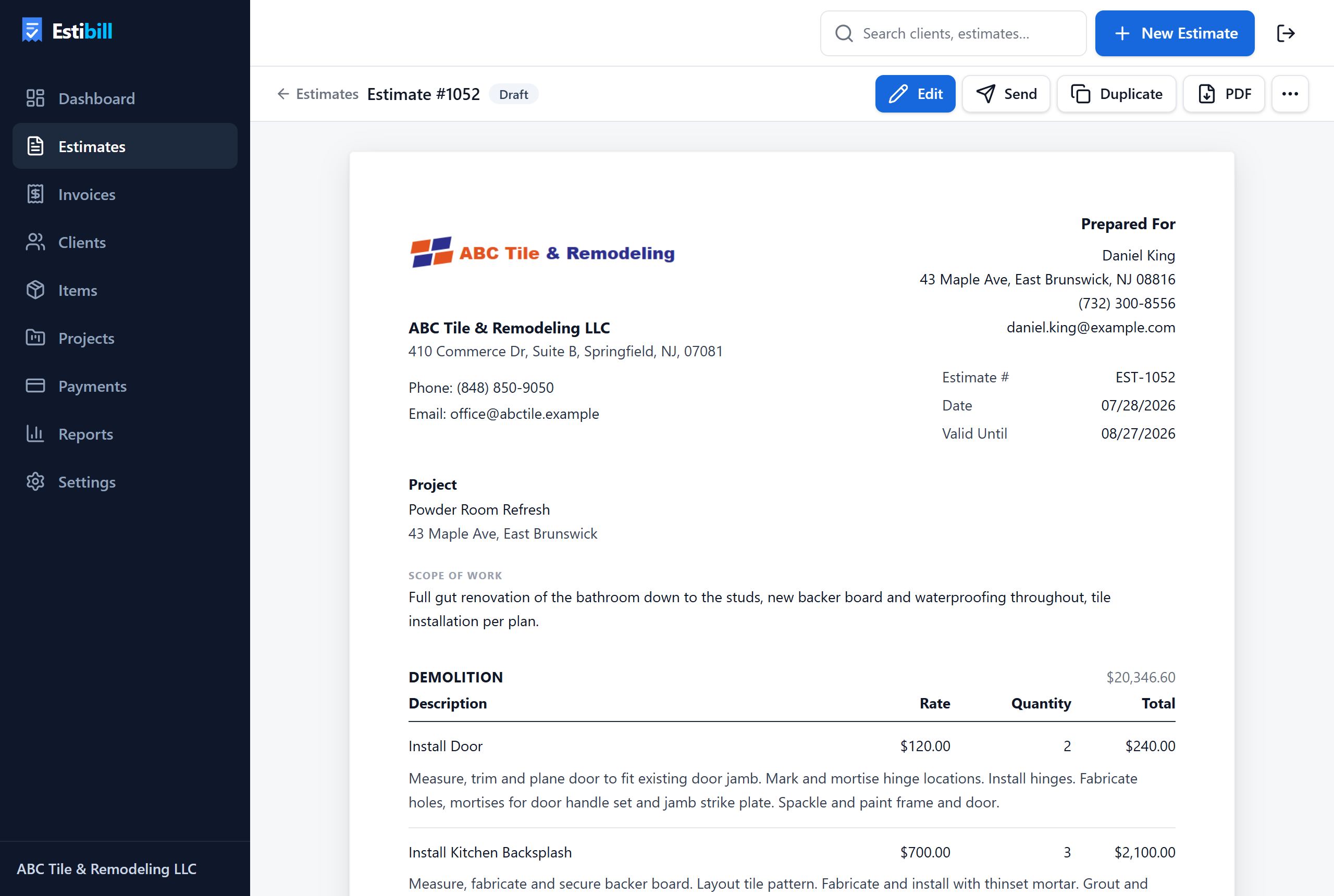
Everything You Need to Run the Job
From the first estimate to the final payment — without spreadsheets, calculators and copy-paste.
Professional Estimates
Create detailed estimates with Sections, Items, Groups and Materials — presented as one clean customer-ready document.
Reusable Items & Groups
Save the work you quote every week. Insert whole assemblies — like a complete bathroom — in one click.
Materials, Separately
Track materials apart from labor, with their own totals, discounts, returns and credits. Or quote labor-only and bill materials by receipt.
Payment Schedules
Deposit, progress payments tied to sections of the job, and an auto-balancing final payment.
Estimates → Invoices
Convert an approved estimate into an editable invoice. Record payments and print receipts.
Clients & Projects
Keep customer contacts, project documents and history organized in one place.
Send by Text
Send the customer a secure estimate link by text message before you leave the job site.
PDF Documents
Every estimate and invoice renders as a professional PDF with your company branding.
Built Around Your Actual Workflow
Real product, not mockups: reusable items and materials libraries, payment schedules, customer-ready documents.
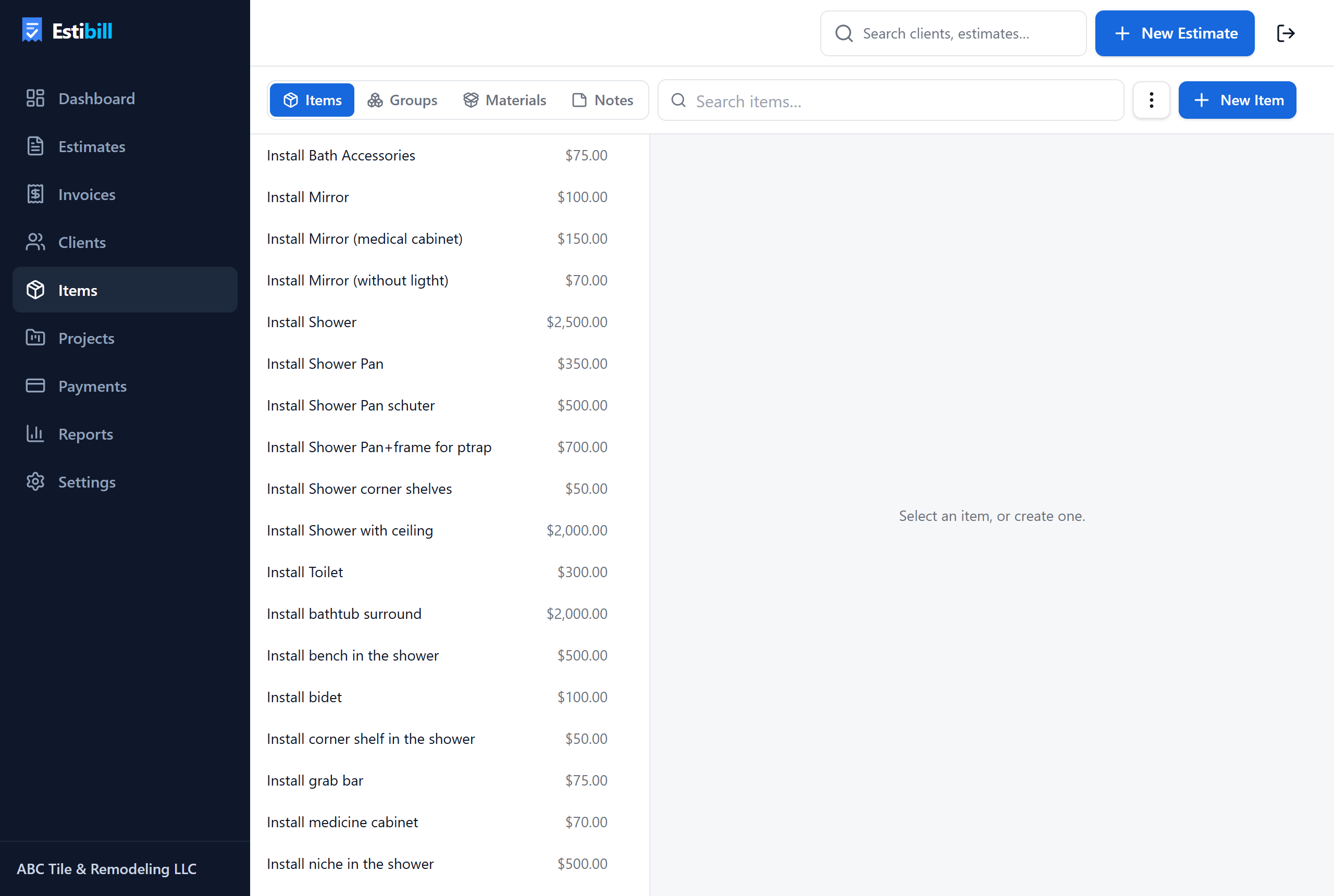
Items, Groups and Materials — your price book, always at hand.
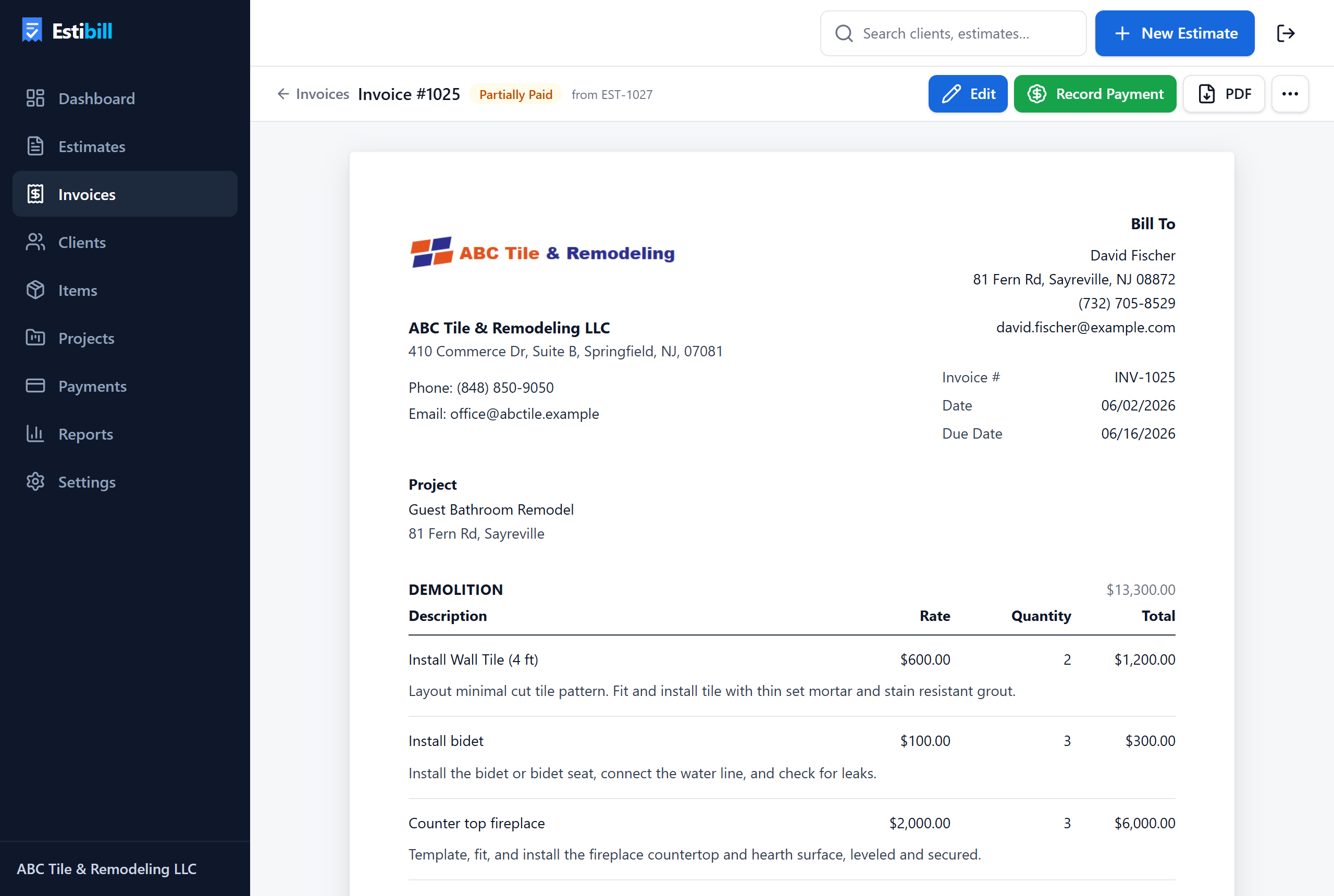
Invoices converted from estimates, with payments and receipts.
How It Works
Six steps from a job-site conversation to money in the bank.
- 1
Create Estimate
Start from scratch or insert saved Items and Groups.
- 2
Add Work & Materials
Labor and materials calculated separately, taxes handled.
- 3
Send to Customer
By text message or a secure link — straight from the job site.
- 4
Customer Reviews Estimate
They open it in a browser. No app, no account needed.
- 5
Convert to Invoice
One click turns the approved estimate into an invoice.
- 6
Track Payment
Deposits, progress payments, receipts — all recorded.
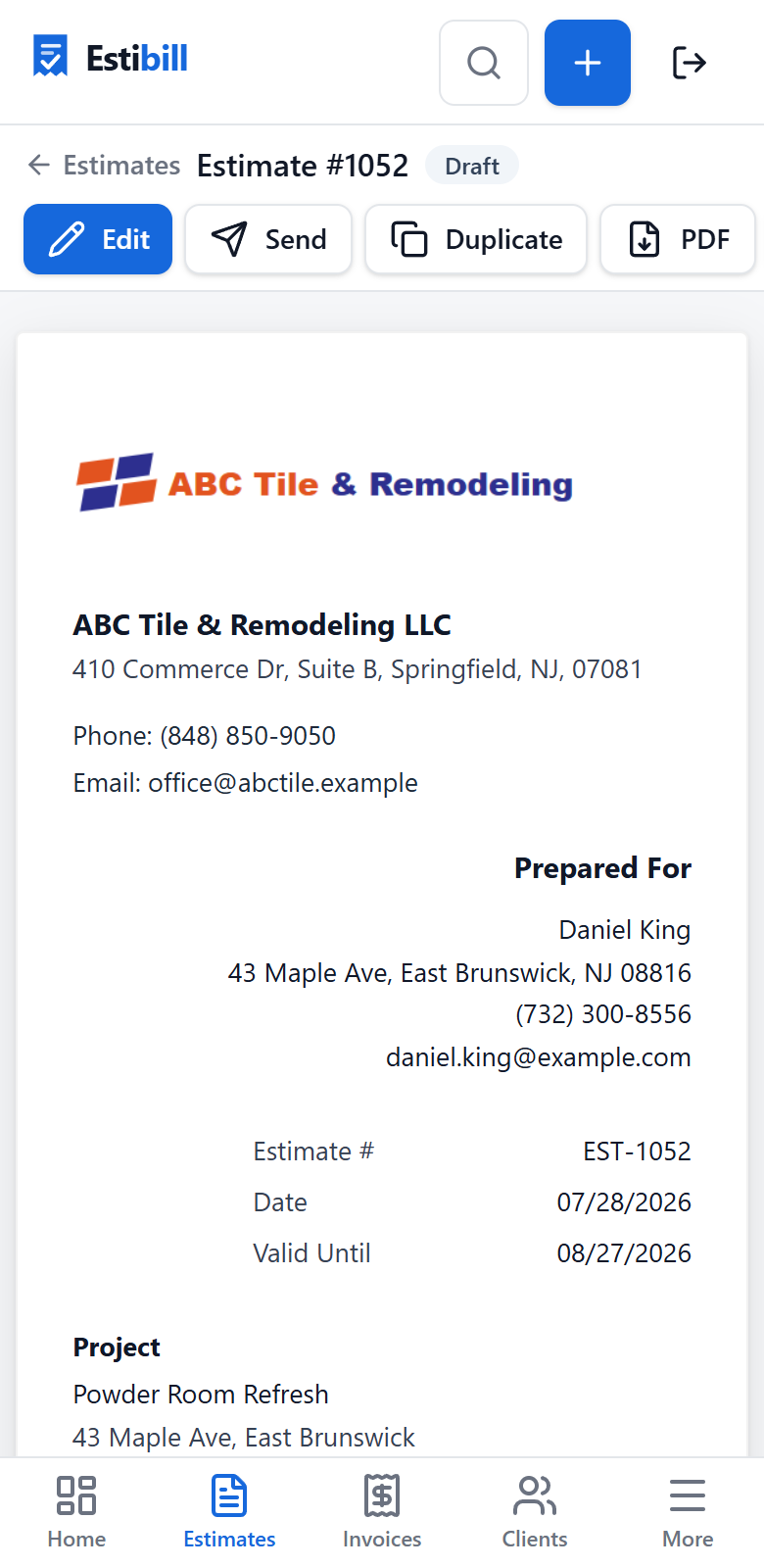
Estibill on your phone
Your estimates go where your jobs go.
- Create and edit estimates from the job site
- Add customers and materials on the spot
- Send estimates by text message
- Create invoices before you drive away
Send estimates before you leave the job site.
Create the estimate on your phone and text the customer a secure link. They review it in their browser — no app, no account, no login.
Start FreeBuilt for Contractors
Remodelers, tile and bathroom contractors, handymen, plumbers, painters, flooring specialists — Estibill speaks the language of the trades: sections, materials, deposits and change orders.
Frequently Asked Questions
What is Estibill?
Estibill is estimating and invoicing software for contractors and service businesses. You build estimates from reusable items, send them to customers, and convert approved work into invoices.
Who is Estibill for?
Remodelers, tile and bathroom contractors, general contractors, handymen, plumbers, painters, flooring specialists — any small business that quotes work and bills for it.
Can I create estimates from my phone?
Yes. Get the Estibill Android app from estibill.com/android, or use your phone's browser — same account, same data.
Can I send an estimate by text message?
Yes. Estibill generates a secure link to the customer-facing estimate, ready to send by SMS from your phone.
Can I convert an estimate into an invoice?
Yes — one click creates an editable invoice from the estimate, keeping the original estimate intact.
Can I separate labor and materials?
Yes. Every item is classified as Labor/Work or Material. The estimate shows a Work total and a Materials total, each with its own discounts, and materials can be excluded and billed by receipt.
Does my customer need to install anything?
No. Customers open estimates from a link in their browser — no account, no app, no login.
Can I create reusable Items and Groups?
Yes. Save items with prices and descriptions, organize materials in their own library, and bundle work into Groups you can insert as whole sections.